
Guide
How to add Arabic subtitles to a video
Adding Arabic subtitles with AI, step by step
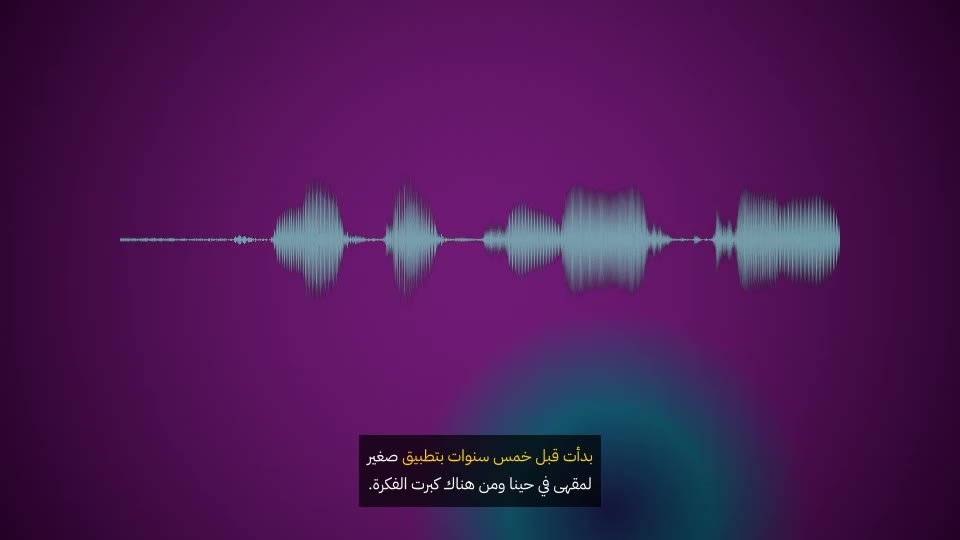
Upload the video and let Vocla transcribe it. You get a transcript with speakers and word timings, which is where the captions come from. Read it once in the editor, fix names and spellings, then choose a style and a frame and render.
The render is an MP4 with the captions burned in, saved to your Library. Export the SRT or VTT from the same transcript for platforms that show their own subtitles.
Burned-in captions or subtitle files?
Burned-in captions are part of the picture: they show everywhere, on every phone and every feed, exactly as you styled them. Subtitle files are separate text that the player shows and the viewer can switch off; they are better for long videos on YouTube or your own site.
Many teams do both: a captioned 9:16 cut for social, and the original video with an SRT for YouTube.
Captions for Reels, TikTok and Shorts
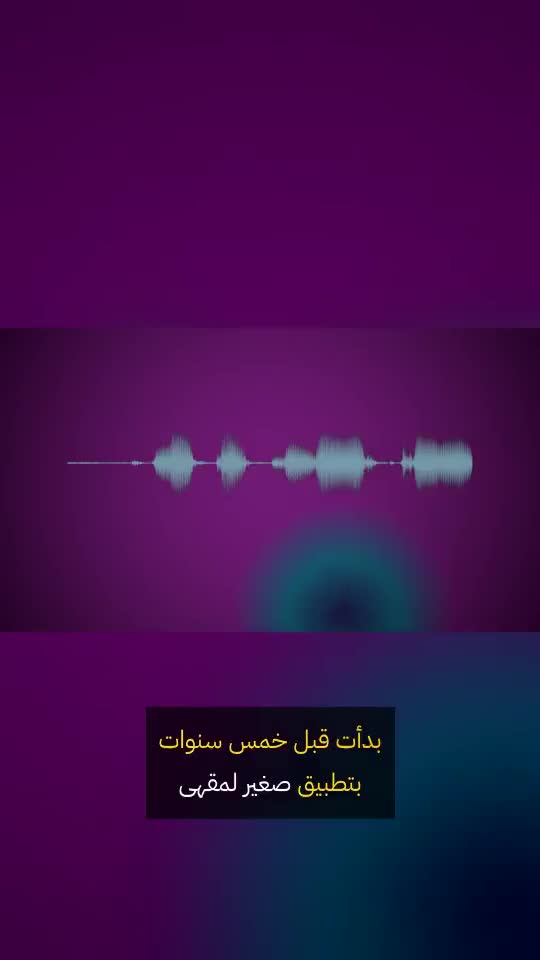
Vertical platforms put buttons over the bottom of the video, so Vocla lifts bottom captions to leave room for them when the output is 9:16. Bold and Karaoke styles read well on small screens; keep captions to one or two lines.
Reframing a 16:9 video to 9:16 keeps the whole picture over a blurred copy of itself when a crop would cut too much, so nothing important falls off the edges.
Arabic captions on English videos
Translate the transcript into Arabic and choose the translation as the caption track. Each translated line keeps the time of the original, so the Arabic appears with the speech. It is the quickest way to put an English interview or ad in front of an Arabic audience.
Karaoke needs word timings, which only the original language has, so translated captions use Clean, Boxed, Bold or Minimal.
Choosing a caption style
Clean suits most footage. Boxed helps on bright or busy scenes. Bold is made for short-form video. Karaoke keeps viewers reading along. Minimal stays out of the way on calm, cinematic shots. The live preview shows your frame in each one before you spend any credits.